![Koble-RGB_Lockup-Color.png]](https://koblesystems.com/hs-fs/hubfs/Koble/Logo/Koble-RGB_Lockup-Color.png?height=40&name=Koble-RGB_Lockup-Color.png)
Click here to skip to the FAQ | Video Walkthrough | Troubleshooting
Setup
- Install EBMS 8.6.239.033 or later
- EBMS 8.6 Only:
- Install the SQL Mirror Module (Module ID EXSQ). Instructions for this can be found here: Installing Optional Modules
- Setup SQL Mirror
- If you would like to host SQL Mirror locally on your network:
- You'll need a separate machine or virtual machine from your EBMS Server.
- Then follow the instructions here to install and configure the SQL server: Configuring the SQL Server
- If you would like us to host your SQL Mirror in the cloud, reach out to Support to request an Azure SQL Mirror database.
- Follow the instructions here to Configure SQL Mirror
- You'll want to make sure you include all tables in your SQL mirror
- Make sure a complete upload is completed before continuing (time required will vary depending on the size of the database)
- If you would like to host SQL Mirror locally on your network:
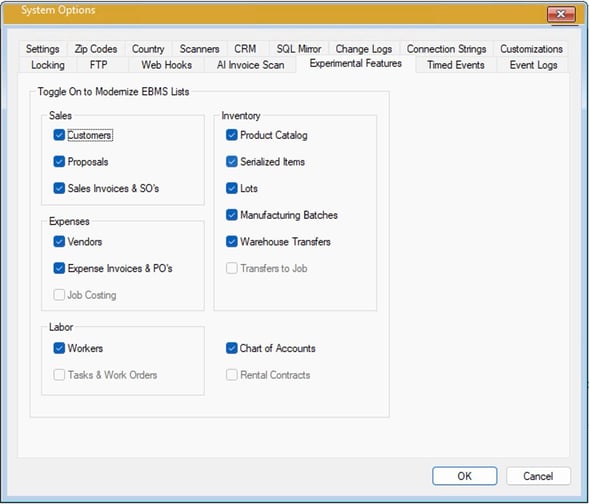
- Enable Experimental Features
- Login to EBMS
- Go to File > System Options > Experimental Features
- Check the boxes for the lists you'd like to use the Modern EBMS List version
- If a list is greyed out, it may not be supported yet (like Tasks & Work Orders), the required module is not installed, or the SQL mirror isn't mirroring that list.
Navigating the screens
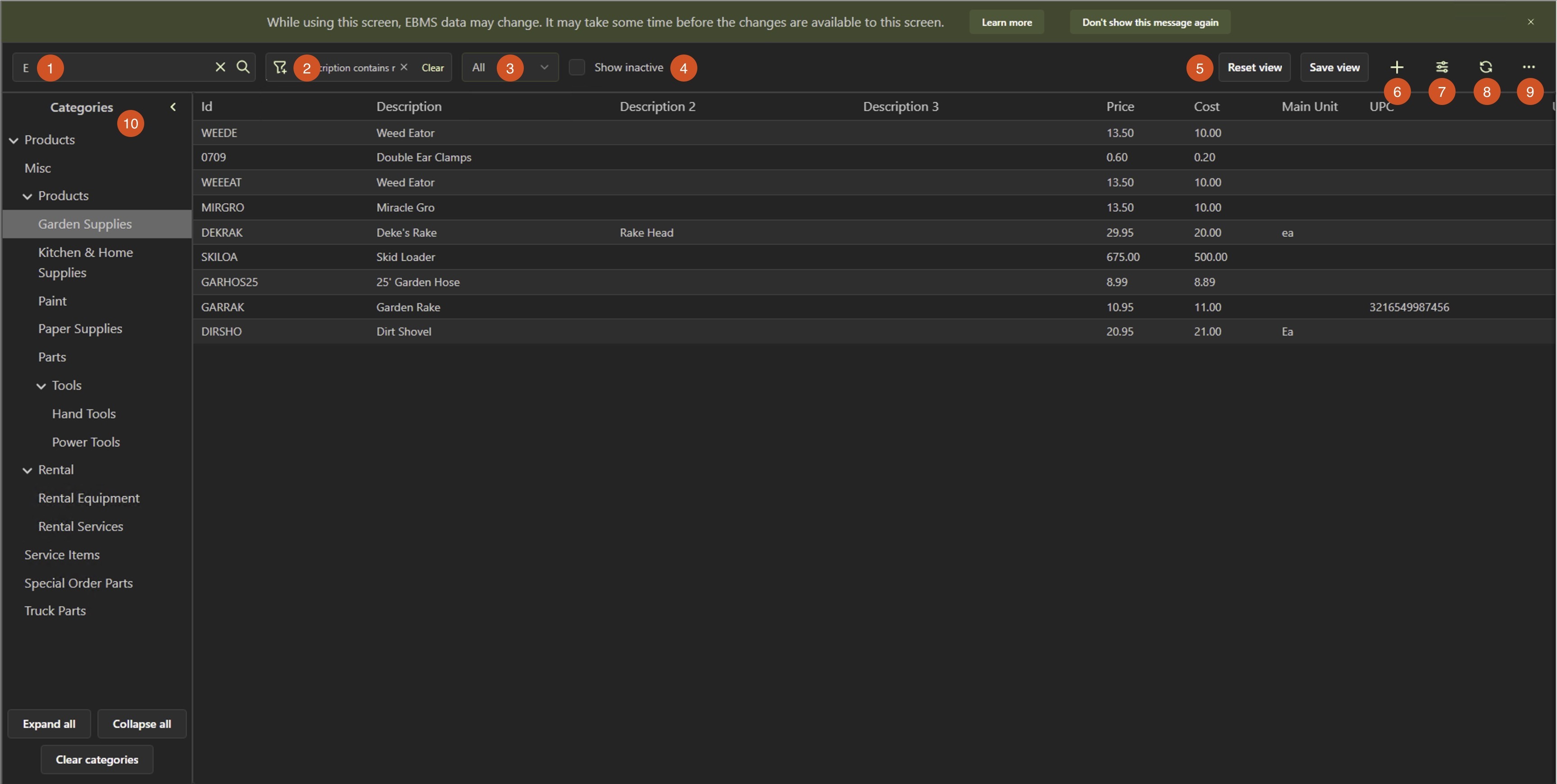
- Search all visible columns
- Click the X to clear the search
- Filter list by columns/fields
- Can nicely build filters by adding more fields and conditions to the filter
- Click "Clear" to remove all filters
- Change Warehouses
- Show inactive items
- Saved Views: Create and change views
- After you make changes to columns, filters, and category selections, you can create a new view by clicking the "Save view" button
- To clear changes without saving, click "Reset view"
- Once you have saved a view, you can switch between saved views by selecting them from the dropdown
- If you make changes while a saved view is selected, a dot will appear next to the view name
- If you want to save changes to the current view, click the save button

- If you want to save the changes as a new view, click the new button

- If you want to undo your changes and go back to the last saved settings on the view, select the view again from the dropdown
- If you want to save changes to the current view, click the save button
- You can delete a saved view by clicking the "Delete" button

- Create new record
- Show/hide columns - You can also right click on column headers to do this
- Refresh the list - Because of the nature of SQL Mirror, MEL will not update your data in real time. So if you change something (say "Cost" on a product), you will need to click the refresh button to see those changes in the list.
- You can hit F5 on your keyboard to do this as well
- Settings
- Light/Dark Mode
- Include Subcategories when selecting categories (for lists with categories)
- Select categories to show (on lists with categories)
-
- Left click to select a single category
- Hold ctrl+click to add or remove from the current selection
- Hold shift to select all categories inbetween the currently selected category and the next category you click on
- You can expand or collapse all your categories using the buttons at the bottom
- Clear your selected categories using the "Clear categories" button (will show items from all categories)
- Click the arrow to collapse/expand the category panel.
Video Walkthrough
Troubleshooting
Issue: Data seems to be missing or outdated, and refreshing the screen does not update the data.
- Potential Cause: You may have filters applied to your SQL Mirror so it excludes specific rows or fields of data
- Solution:
- Go into File > System Options > SQL Mirror tab
- Make sure there isn't anything under "Fields to Exclude" related to the tables or lists you are looking at
- Click the "Table List" button and make sure all relevant tables are selected and no filters are applied
- Do a complete upload.
- Solution:
- Potential Cause: SQL Mirror is not syncing correctly
- Solution: Go to File > Syncronization Status and review any errors. Do a complete upload once changes to address errors are made. Reach out to support for assistance with fixing any of these errors if needed.
- Potential Cause: Filters, categories, or search is applied to the Modern EBMS List
- Solution: Check your saved views, clear your filters, search box, and category selections (If you have saved views, select "Default View", or "Reset View" to go back to the last saved state of that view)
Issue: List will not load, or displays an error on the screen
- Potential Cause: EBMS cannot access your SQL Mirror
- Solution: Make sure your SQL mirror is running. If your SQL Mirror is hosted in Azure, make sure your internet is up and stable.
- Potential Cause: An expected field is missing or unavailable
- Solution: Read the error carefully. Remove the field from the selected columns.
- Solution: That field may not be syncing. Follow the instructions above to remove any filters or excluded fields.
Frequently Asked Questions
- Why should I adopt Modern Lists?
Modern Lists make it faster and easier to work with your data in EBMS. They load quicker, search deeper, and give you more control over how information is filtered, sorted, and displayed.
Built on modern technology and informed by real user feedback, Modern Lists introduce full-text search, flexible filters, saved views, and simple column sorting and ordering, so you can get to the right answers without extra steps or workarounds. It’s a cleaner, more responsive list experience that reflects where EBMS is headed and helps you get more done with the data you already have.
- What is new/different about Modern Lists?
-
Full-text search: Type what you’re looking for and get consistent, complete results. No guessing which field to search or which button to use.
-
Saved views: Build a list using search and filters, then save it so you can return to the same view anytime.
-
More flexible sorting: Sort by more columns than before, including sorting by multiple columns at once.
-
In-context filtering: Add filters and watch results update immediately, so you can refine your list as you go.
-
Easy screen scaling: Use familiar keyboard shortcuts (Ctrl + / –) to quickly adjust the list view to your preference.
-
- Will using Modern Lists speed up performance?
Modern Lists improves performance around searching and data retrieval by querying data directly from SQL. This allows searches to run faster and look across all the data you have access to at once, without extra steps or limitations. The result is quicker, more complete results when you’re finding and working with information. - What are the requirements to access Modern Lists?
-
EBMS version 8.6.239.033 or later installed and running
-
SQL Mirror set up with your EBMS database fully synced
-
Customers already using SQL Mirror will have access once Modern Lists are installed
-
EBMS with Postgres includes this capability by default
-
- What screens have this new feature?
- Customers
- Proposals
- Sales Invoices & SO’s
- Vendors
- Expense Invoices & PO’s
- Job Costing
- Workers
- Product Catalog
- Serialized Items
- Lots
- Manufacturing Batches
- Warehouse Transfers
- Transfers to Job
- Am I losing any features?
Our goal with Modern Lists is feature parity, and in most cases, you won’t lose functionality. That said, there are a few advanced tools that are not currently available in Modern Lists.
If you rely on building complex queries using code-based expressions, that capability is not included with the new filtering system. Calendar-based date selectors used in advanced queries are also not yet available, though date filtering is still supported.
We’re continuing to refine Modern Lists based on real-world use and feedback, and we’ll keep closing those gaps as the feature evolves.
- Will Modern Lists feel different from what I'm used to?
Yes, they might. Especially if you’ve spent years mastering how lists work in EBMS today. Modern Lists follow more common patterns for search, sorting, and layout, and that change can feel disruptive at first if the current approach already works well for you.
Not every update lands the same way for every user. Some changes will feel like clear improvements. Others may raise questions. That’s normal, and Modern Lists are no exception.
Our encouragement is simple: try it with an open mind. Watch the walkthrough, use it in your day-to-day work for a few days or weeks, and see if it removes friction or saves you time. Because Modern Lists are opt-in, you’re always in control and you can switch back at any time.
Your feedback matters. If you have questions or want to share what’s working (or not), reach out to Deke at deke@koblesystems.com.
- Can I use Modern Lists if I don't have internet access or a browser on my computer?
Yes. Modern Lists do not require an internet connection. They use browser technology that’s built directly into EBMS and runs through a service on your server.
While EBMS does require SQL Mirror, that can be hosted locally or in the cloud. And because the browser component is included as part of EBMS, you don’t need to install or manage a separate web browser to use Modern Lists.