![Koble-RGB_Lockup-Color.png]](https://koblesystems.com/hs-fs/hubfs/Koble/Logo/Koble-RGB_Lockup-Color.png?height=40&name=Koble-RGB_Lockup-Color.png)
1. EBMS Backup Instructions
2. EBMS Update Instructions
3. Additional Update Information & Tips
EBMS Backup Instructions
Before Upgrading/Updating EBMS, create a backup copy of your EBMS files and disable all automated backup software and antivirus software.
Koble Systems recommends using an enterprise-level backup solution to back up the EBMS data folder. (We do not recommend real-time backup systems)
This is important because inexpensive backup solutions have a potential to prevent EBMS from working properly by holding files open. It is also recommended that the full data set is backed up regularly and that this happens at a scheduled off-peak time to minimize system performance impact.
Contact your IT provider or our partner Landis Technologies at 717-733-0793, if you need help finding an enterprise-level backup solution.
EBMS does not provide a backup utility currently.
Complete the following steps to manually backup EBMS:
-
The first step is to find the server location where the main EBMS data folder is located. Do not confuse with the local client EBMS client software. Review Server Manager Overview to locate all EBMS data sets.
-
Verify that the data directory contains many *.DBF, *.CDX, and *.FPT files.
-
Verify that the current data directory is located by verifying the date modified setting for main EBMS files.
-
Copy the entire data directory to a backup location.
EBMS Update Instructions
Download Instructions in PDF Format
1. After backing up your data, EBMS Updates will be completed by you unless you’ve arranged for Koble to run the update for you as a billable service, or you are an EBMS Plus client. (Our Plus service is an added value, where we will manage and install EBMS updates for you!)
2. Make sure all Windows Updates are done on the Server and the Workstations. This includes the
latest Microsoft .NET Framework installed as well. Admin privileges will be needed to complete these actions.
a. The server and workstations may have to have several rounds of updates installed including reboots in between some updates.
i. After updates are installed and the machines have rebooted, continue to check for updates until Windows reports that all updates have been installed.
b. We recommend that you restart your server and each workstation once more before doing the EBMS update.
3. On the EBMS data server (computer where the data is stored), log in as a Windows administrator.
4. If the Server is on EBMS Version 8.2 or higher, the update will be pushed to your EBMS Server Manager program. If you have entered your administrator email in the Notification section of the EBMS Server Manager, you should receive an email when the update has been downloaded.
First, install on your EBMS data server and run by clicking “Run EBMS Update” within the EBMS Server Manager.

a. Important: Please exercise patience during the update process and data update process, EBMS can seem to be unresponsive at times, but be assured that it is in process.
b. After the EBMS program has been installed on the server, you will be prompted to update your data sets. Select all datasets you wish to update.
c. Please Note: Some data updates can be lengthy depending on the size of your company files, what version you are updating from/to and your computer age.
d. When the data is finished updating, we recommend that you run all utilities. (See Step 5)
5. After updating EBMS on the server and before updating each EBMS workstation, it is recommended that EBMS utilities are run on the data to ensure that the data is optimized and error free. Please refer to our documentation for steps at this link: Schedule Maintenance Tasks
6. Next, EBMS needs to be installed/updated on all workstations to update the local program files. Since you were on EBMS 8.2 or newer prior to running this update, you will simply login to EBMS and you should be prompted to update. The workstations will look for the EBMS installation files in a shared “ClientInstaller” folder on your server. E.g. \\[servername]\ClientInstaller. You can access the setup.exe file there if you need to manually initiate the installation.
7. If you have any customizations or custom reports, test them immediately to make sure they work. Sometimes there are data changes that affect reports, and they need to be updated. This is especially true if you are updating to a major version of EBMS. (e.g. 8.5 to 8.6) Update to custom scripts and reports are not reverse compatible and will result in a nominal fee to update them if necessary.
For Technical Support, contact Koble Support at 717.442.3247 Option 2.
REMINDER: Accounting files should be stored on a reliable backup regularly! In the past, there have been companies who have experienced total data loss because of hardware failure. Please check your backup system periodically to ensure it is working properly. Koble Systems, Inc. is not responsible for lost data due to backup failures.
Additional Update Information & Tips
-
Launch the EBMS Server Manager on the EBMS data server. Proceed to step #3 if the EBMS update has already been downloaded.
-
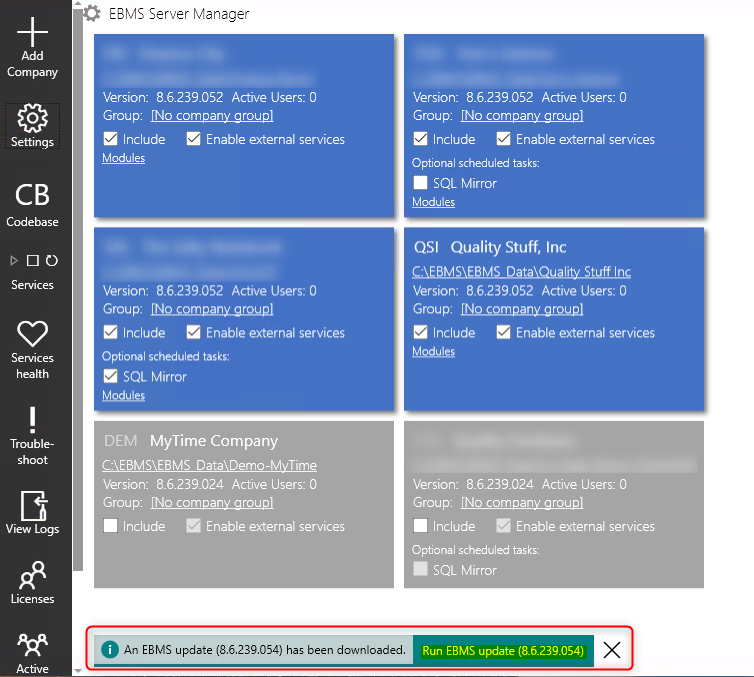
Complete the following steps to download the update: Note that a message may appear at the bottom of the Server Manager and may indicate that an image has already been downloaded as shown below. Step #2 can be ignored if the update is already downloaded.
-
If the green bar is already showing the latest version below, you do not need to download. The nightly auto-update downloaded it for you. Verify the version before proceeding. (If the green bar is not showing, proceed to step b)
-
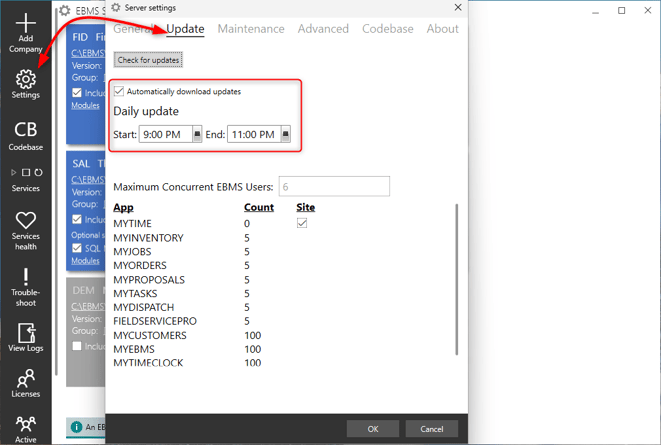
The update download can be automated by enabling the Settings > Update Automatically download updates option as below: Set the Daily update settings to create the span of time to check and download any updates pushed by Koble Systems.
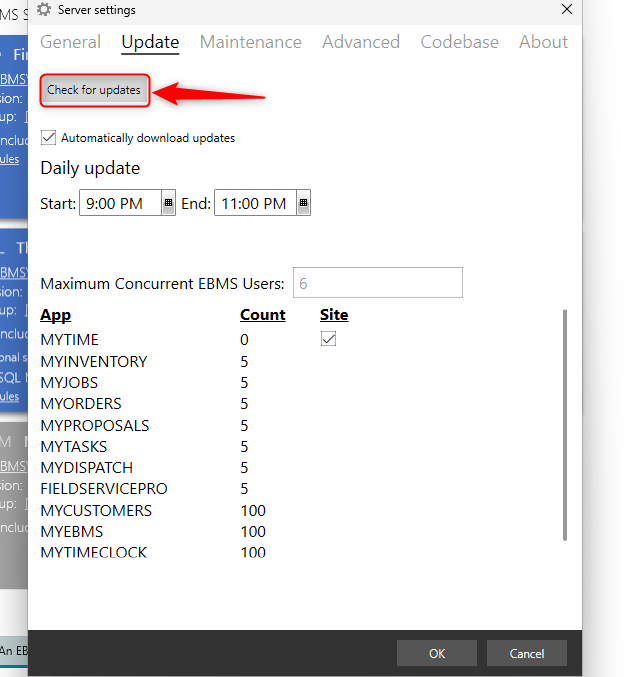
- To force the update, click on Check for updates and wait for the progress bar to complete.
-
-
Install the EBMS update by completing the following steps:
-
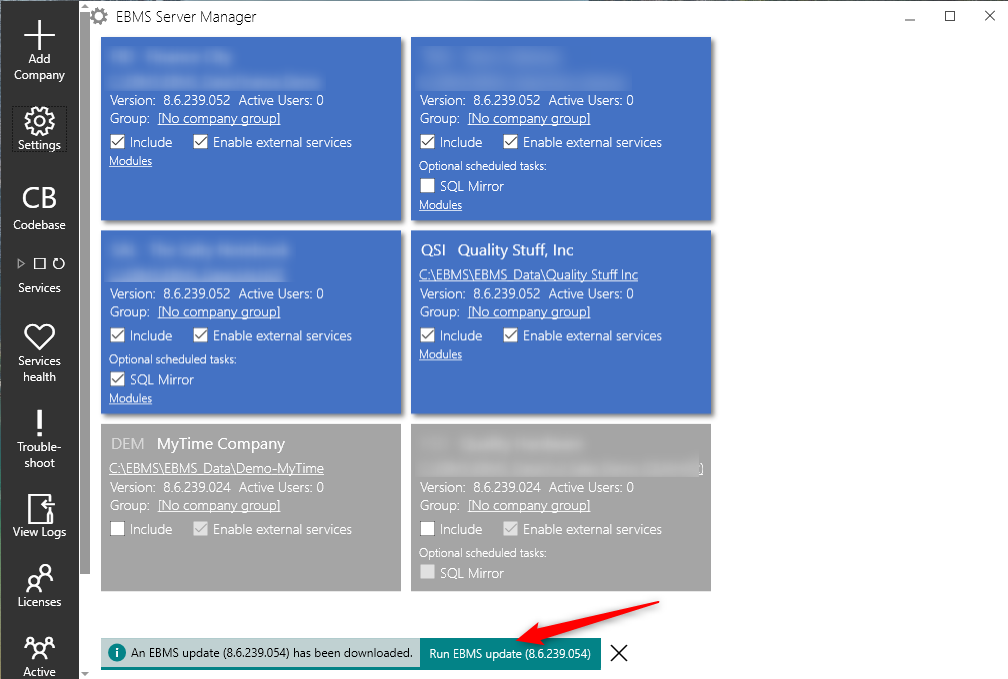
Click on Run EBMS update on the lower green bar to update the EBMS program one or more data sets: Individual data sets can be upgraded by clicking on the Update button located on a specific data set.
-
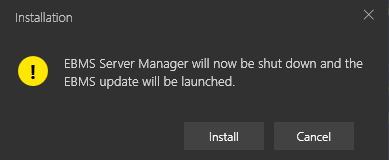
Server Manager will then shut down and the update will launch. Please note: If you are updating to a new major version of EBMS (i.e. 8.5 to 8.6) You will need to verify that all users have exited EBMS since the software must be shut down. When you are ready, click on the Install button to continue with the update.
-
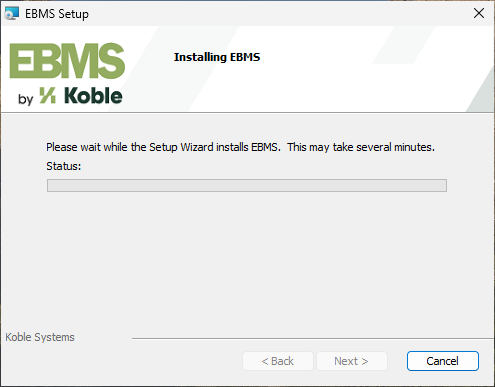
The EBMS Setup utility will be launched. Step through the installation wizard as prompted. Please note that multiple dialogs will appear in the foreground or background and that may require some time to complete. We encourage you to exercise patience during this time.
-
-
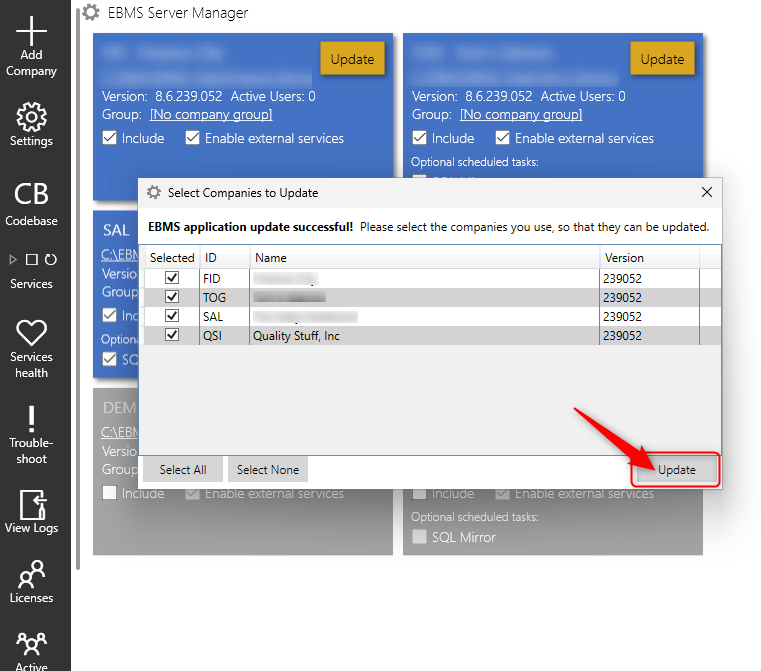
The update wizard will give the user the opportunity to select the company data sets to upgrade.
-
Click the Update button as shown above to launch the update process for all of the selected companies.
-
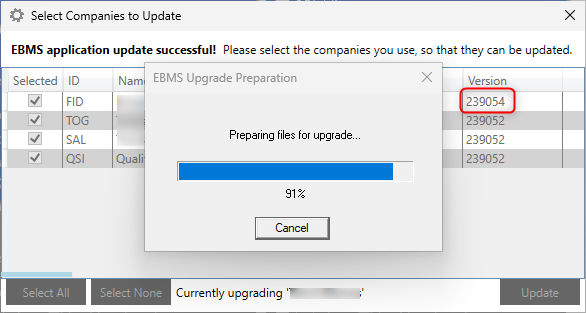
The update process status will display the progress of the update within each data set.
-
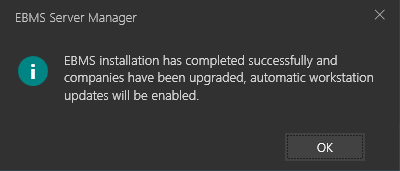
A dialog will appear indicating that the EBMS server and each data set has been updated successfully. Continue with the next step to update workstations only after the update process on the server is complete.
-
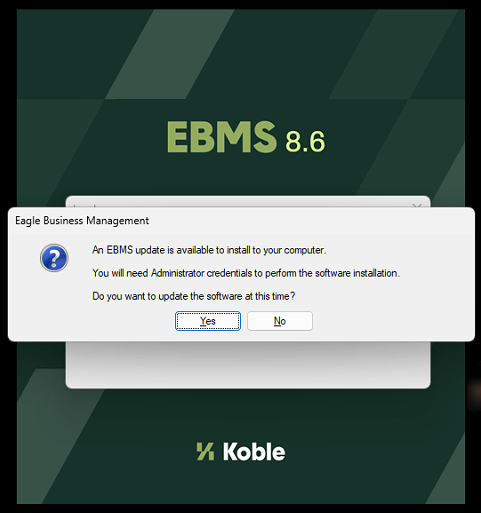
Each workstation will be prompted to update as shown below: Note that the client update from the server requires the EBMS\Server\ClientInstaller directory to be shared. Review Initial Installation > Client for information on this important shared server directory.
-
Repeat this step for each workstation that has the EBMS software installed. Note that the user must have administrative security rights to complete the workstation update.
 The Roll Back EBMS option can be used to reverse an EBMS update if absolutely necessary.
For Technical Support, contact Koble Support at 717.442.3247 Ext. 2 or email mytickets@koblesystems.com with any questions.
DISCLAIMER
In no event shall Koble Systems, Inc. be liable for costs of procurement of substitute products, loss of profits, data or use of the software product, or special, incidental, or consequential damages or other similar claims, however caused, and on any theory of liability, even if Koble Systems, Inc. has been specifically advised of the possibility of such damages. In no event shall Koble Systems, Inc. be liable for any damages to you or any other person ever exceed the lower of the suggested list price or the actual purchase price paid for the software product, regardless of the form of the claim. These limitations shall apply notwithstanding any failure of essential purpose of any limited remedy. All third-party suppliers to Koble Systems, Inc. of any portion of the software product make no warranty and shall have no liability to you.