![Koble-RGB_Lockup-Color.png]](https://koblesystems.com/hs-fs/hubfs/Koble/Logo/Koble-RGB_Lockup-Color.png?height=40&name=Koble-RGB_Lockup-Color.png)
1. Create a Simple Texting Account
- A paid account is required to access the Simple Texting API
- Login to Simple Texting Account
2. Retrieve API Token
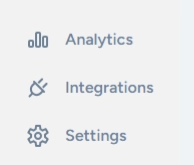
- Click the integrations menu option at the bottom left side of the sidebar.
- Click on API and Webhooks at the top of the page
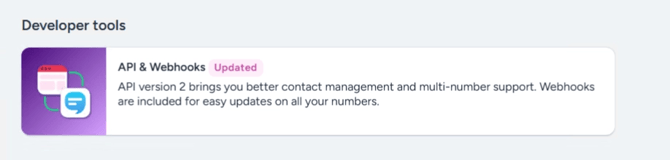
- Copy the API token.

3. Paste API Token in EBMS
- Open EBMS.
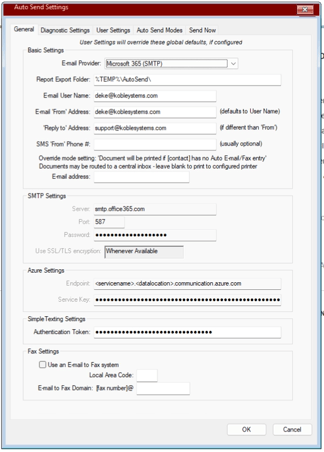
- Navigate to AutoSend options.
- Click in the Simple Texting settings and paste the API token in the Authentication Token box
4. Set Up User Settings
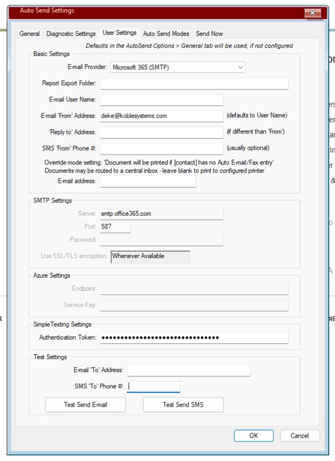
- Go to User Settings in EBMS.
- Enter a phone number for testing in the field labeled SMS to Phone # within the Test Settings section and click Test Send SMS. The number must be able to receive a text message.
5. Set Up Send Now Mode for a document like a Sales Order and make sure to check the “Default Use for SMS” box.
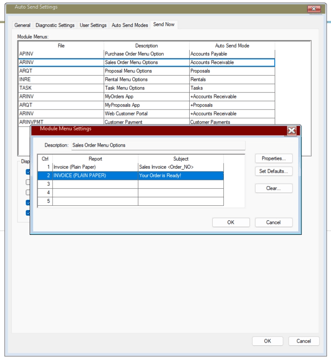
6. Choose Report Type if you would like to include one as an attachment though it isn’t required.
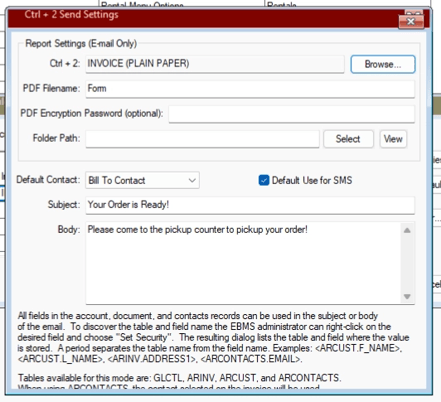
7. Customize SMS Message
- Create a message template, e.g., 'Your order is ready. Please come to the pickup counter.'
- Save the changes.
8. Send SMS from Sales Order
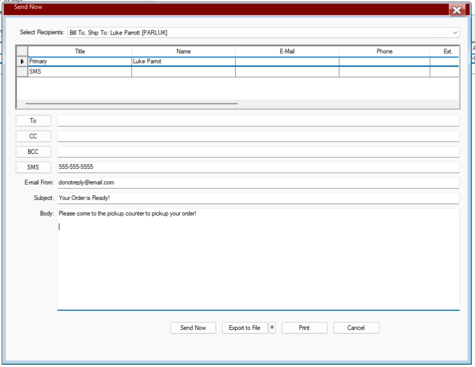
- Open a sales order in EBMS.
- Go to File and select the send now option you created.
- Enter the recipient's phone number and click Send Now.
9. Confirm SMS Delivery
- Check your device to confirm receipt of the SMS and attachment.