![Koble-RGB_Lockup-Color.png]](https://koblesystems.com/hs-fs/hubfs/Koble/Logo/Koble-RGB_Lockup-Color.png?height=40&name=Koble-RGB_Lockup-Color.png)
Smart Lookup
What it does
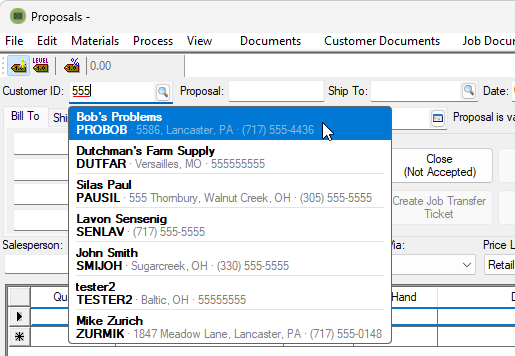
Before, a lookup only matched if you typed the start of an ID. With Smart Lookup you can type anything you know about the record: a name, a description, a phone number, or part of an ID. EBMS shows the best matches as you type.
Where it works
Smart Lookup works in every customer, product, vendor, worker, G/L account, and job field, with nothing to turn on. That includes:
- Product lines on sales orders, invoices, proposals, purchase orders, POS, manufacturing materials, and rental contracts.
- Customer fields on sales orders, invoices, and rental contracts.
- G/L account fields, including the G/L account on proposal lines.
- The job field on job cost transfers.
What you can type
| Record | Finds matches on |
|---|---|
| Customers, vendors, workers | ID, name (either "Miller John" or "John Miller"), phone number |
| Products | Item ID, manufacturer part number, UPC, a vendor's part number, words in the description |
| G/L accounts | Account number (with or without the dash: 01000000 finds 01000-000), description |
| Jobs | Job ID, description, the customer's ID |
How results are ordered
- An exact ID match comes first.
- Next come records that start with what you typed.
- Then records that contain all your words anywhere in the name or description.
Within each group, active records come before inactive ones. Inactive records are marked with an Inactive label. For products, in-stock items are listed first.
What each result shows
- Customers, vendors, workers: the name in bold. Below it, the ID, street address, city and state, and phone number.
- Products: the description in bold, with the ID below it.
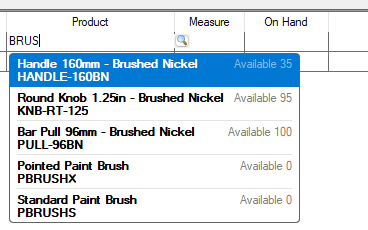
- Counted inventory items: the quantity on the right.
- Hidden fields: fields a user's security settings hide are not shown in the results.
- Adding New Items: Tabbing away after entering a product ID without selecting a match will still prompt the user, giving the opportunity to create a new item.
- Still supported: Barcode scanning and direct product entry is still supported
Keyboard and mouse
- Down arrow moves into the list.
- Enter, Tab, or a click picks a result.
- Tab in a customer, vendor, or worker field takes the best match. To enter a new ID that doesn't exist yet, click away instead, and EBMS will offer to create it.
- Escape closes the list and puts back whatever was in the field before you started typing.
- Clicking away after typing keeps what you typed.
Optional: find products by folder name
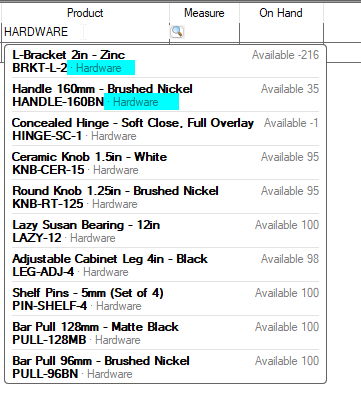
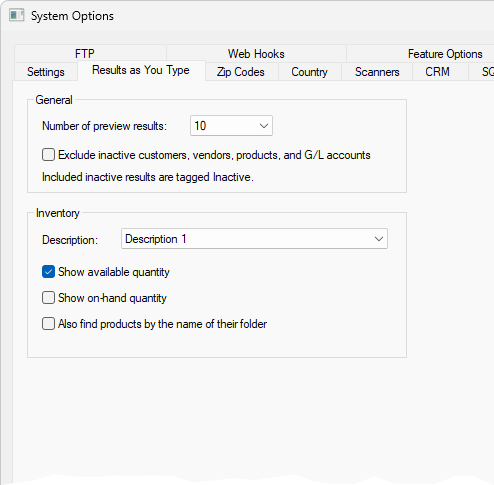
The Results as You Type options page has a checkbox: Also find products by the name of their folder.
- It is set per user and is off by default.
- With it on, typing a category name such as "Shop Supplies" finds items stored in that folder, even when their descriptions never mention it. These matches are listed after description matches.
- Only the folder the item is stored in is searched, not the folders above it.
- Each product row also shows the folder name after the ID.
Tips
- Words can go in any order, and the last word can be partial: "joh mil" finds John Miller.
- IDs and part numbers match from the start only. Typing the middle of an item ID won't find it, but a word from its description will.
- The existing Results as You Type settings still control the extra detail shown for products.
Requirements
Each company needs the data upgrade that comes with the release 9.0.240.132. A company that hasn't been upgraded keeps the old start-of-ID lookup, and EBMS shows no error.
To change your own settings for this feature navigate to File > System Options > Results as you Type tab. These settings are available to all users with basic level permissions or higher.
Setting "Number of preview results:" to 0 will disable the feature entirely for the legacy experience.
If you choose to exclude inactive records from the preview, the user will still be able to manually enter an inactive record if needed.
FAQ:
Why doesn't my lookup search by name? Your company hasn't had the data upgrade for this release yet. Until it does, the lookup only matches the start of an ID.
I typed part of an item ID and nothing came up. IDs and part numbers match from the start only. Type the beginning of the ID, or a word from the description.
Why is the item I wanted lower in the list? Exact ID matches come first, then records that start with what you typed, then word matches. Within each group, active and in-stock items come first. Typing another word or two usually brings the right one to the top.
Why do I see inactive customers or items? They're included so you can still find old records. They're listed after active ones and marked Inactive.
I pressed Escape and my typing disappeared. That's on purpose. Escape cancels the lookup and puts back what was in the field before. To keep what you typed, click away instead.
I'm adding a new customer. Why did Tab fill in an existing record? In customer, vendor, and worker fields, Tab takes the best match, so you can type an ID, press Tab, and move on. To create a new customer, vendor, or worker, click away from the field instead of pressing Tab. EBMS will then ask whether you want to add it.
Products work the usual way. If you press Tab without picking a match, EBMS asks whether you want to create a new item.
Why can't I see a customer's address or phone in the results? Your security settings hide those fields from you, so the lookup hides them too.
Can I search products by category? Yes. Turn on Also find products by the name of their folder in the Results as You Type options.
Does this slow EBMS down? No. Each search takes a few milliseconds, even with over 100,000 products