![Koble-RGB_Lockup-Color.png]](https://koblesystems.com/hs-fs/hubfs/Koble/Logo/Koble-RGB_Lockup-Color.png?height=40&name=Koble-RGB_Lockup-Color.png)
Setup
Requirements
- EBMS 8.6.239.058 or later.
- Tasks & Work Orders Module
- OData API - Refer to the API Gateway Setup documentation
- If you already have the API setup, then you just need to configure the Cloudflare API required by Field Service Pro. Go to EBMS Server Manager > Settings > Advanced > Click "Configure API Access"
- Licenses - please contact your Account Manager about getting licenses.
- A device with a browser
- Apple devices require iOS 26 / iPadOS 26 to use Document Storage/Attachments.
Setup Video:
Setting Up Users
-
Make sure an EBMS user with appropriate permissions is setup for each worker you want to access Field Service Pro
- If you need to create a user, you can refer to the documentation here: Creating EBMS Users
- The user should have at least "Basic Entry" permissions at the Main permissions (under the "Name" tab of the user), as well as for the Tasks, Labor, Inventory, and Sales modules (under the "Modules" tab). "Advanced Entry" for Tasks is recommended.
- This assumes default permission levels on a number of tables. If you have changed permissions of Basic Entry users for ARINV, TASKS, INVENTRY, INRG or any other table that connects to a task, you may need to adjust these permission levels.
- Go to Labor > Workers and open the worker you want to access Field Service Pro (or create the worker if they don't exist)
- Connect the EBMS user to the worker under the General tab and set the "Login Name" to the EBMS user from Step 1
- Go to the App Settings tab
- Set the work codes you want this worker to be able to login to (not related to tasks, like shop time, work time, breaks, lunch, etc.)
- Check the "Allow" box next to the Field Service Pro app (if the "App License" box doesn't automatically check, you'll need to check that as well)
- Click on Field Service Pro and click "Properties" (or double click Field Service Pro)
- The first query in the list will be used with Field Service Pro. Adjusting this query will adjust what the worker sees in the app. Field Service Pro will honor all the same settings/options in that first query that MyTasks does (like sort order).
- Note that "Day View" is a MyTime specific query and will not work in Field Service Pro.
- Recommended query:
- Check the box for "Query by Worker" sort by START_TIME A-Z, and select the "Query" option
- Click "Set Query" and use this query:
COMPLETED = .f. .and. START_DATE <= Date() .and. END_DATE >= Date()
This sets the query to be all uncompleted tasks where today's date is on or between the start and end date of the task.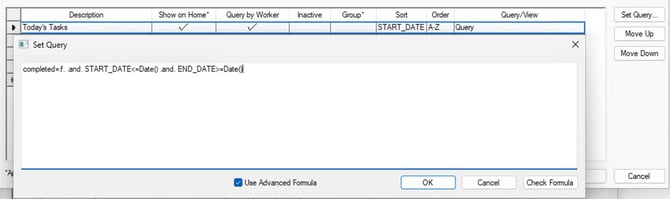
- In EBMS 9.0 you can also set the Default Task Type that Field Service Pro will use when creating a new task here.
- Make sure that your task types have defaults for all required fields (like Manager if you use the managers feature of EBMS), as Field Service Pro relies on EBMS defaults for many of these fields to simplify task creation in the app, and if required fields are missing, you may have errors creating the task.
Using Field Service Pro
Anything marked with an * will require you to be online to work. Everything else will work offline and queue up the changes to sync when you are online next (as long as your don't clear your browser cache)
Logging in*
- Navigate to https://fieldservicepro.koblesystems.com/
- If you want to install the site as an app on your device, exact steps will vary depending on device and browser. On most mobile devices you tap the "Share" icon and look for something like "install as app" or "add to Home Screen".
- Enter the EBMS Serial Number
- Select a Company from the drop down
- Enter EBMS Username and Password
- Tap the "Log In" button
- If prompted, set the task type used when creating a new task
Navigating Field Service Pro
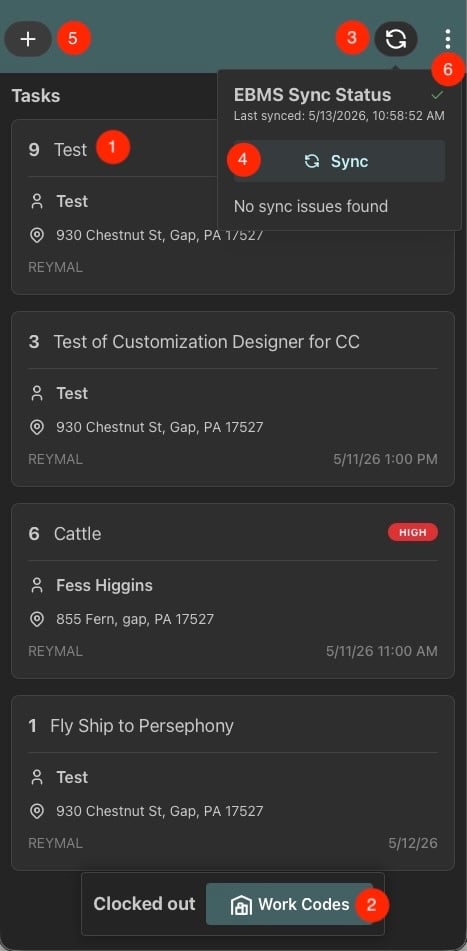
- Tap on a task to open it up
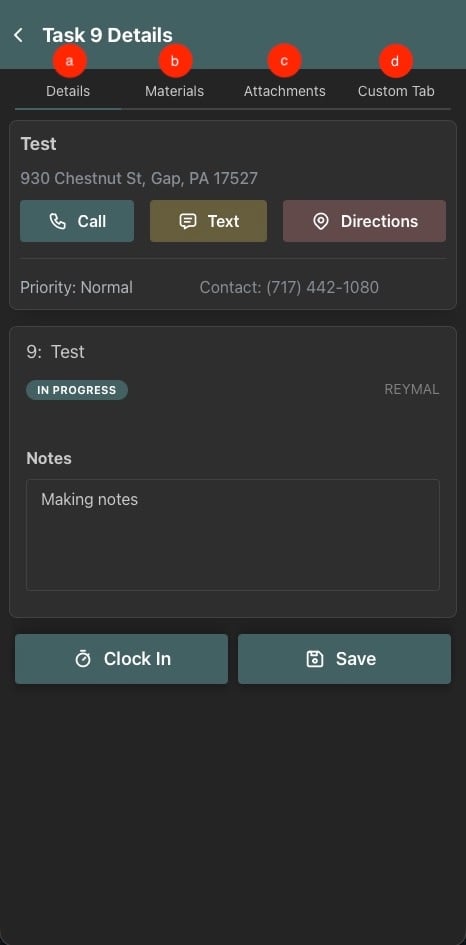
- Details Tab
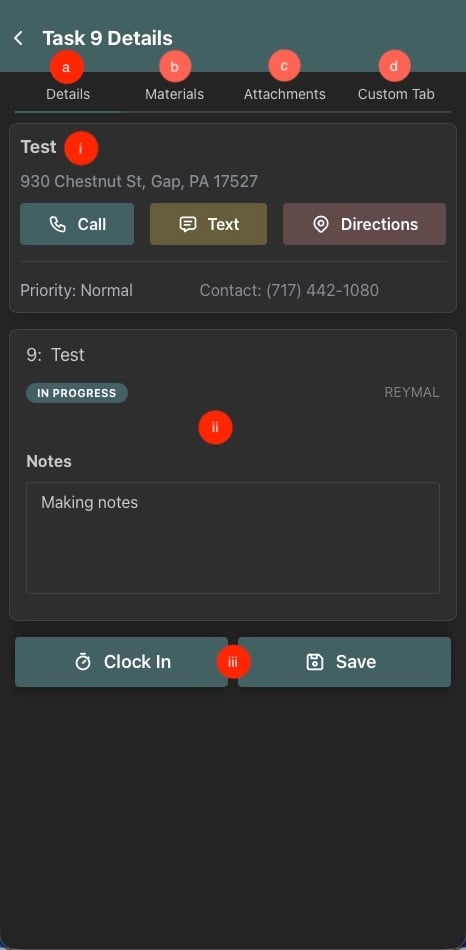
- Shows customer info along with contact buttons (for any contact info that exists on the record). Pressing these buttons will open the default app on your device.
- Shows Task Description and notes.
- Can Clock In (or out) of a task or Save changes if you edited any info.
- These buttons persist across every screen.
- Clock In will change to "Clock Out" if you are clocked into this task.
- Materials Tab
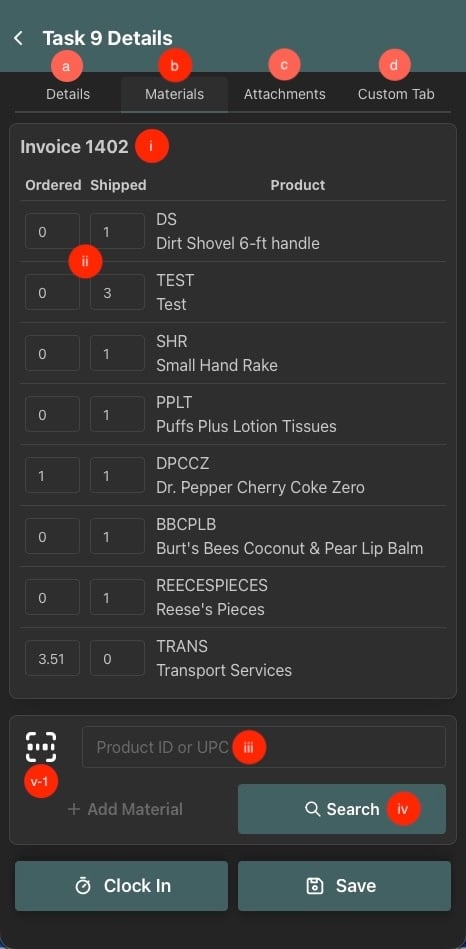
- Can view materials on the invoiced attached to the task (if there is one)
- Can manually update quantities
- Can add materials by typing in the Product ID or UPC - the app will attempt to match right away if you are online, otherwise will attempt to match later
- Can search for a product*
- Can scan a barcode to match Product ID or UPC
- Tap the camera button to use the camera of the device.
- Android devices can us a Socket Mobile scanner. Review the Socket Mobile section of MyInventory Scanner Hardware to configure the device.
- Attachments
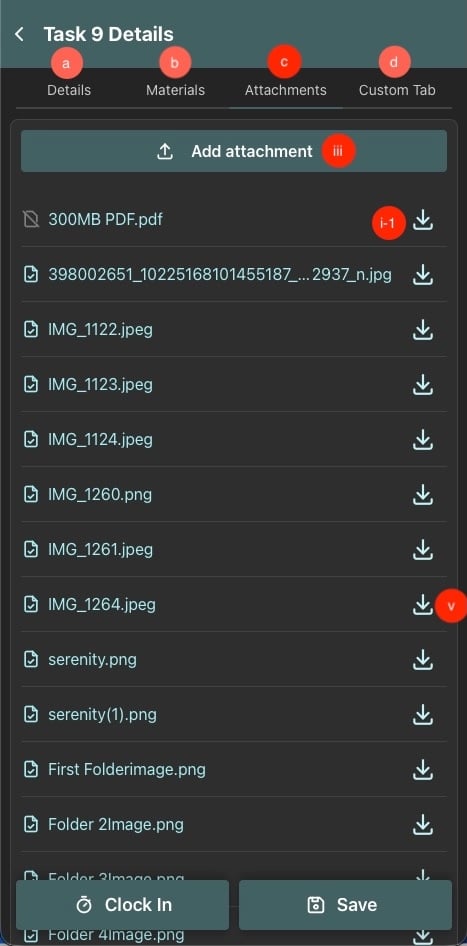
- Will automatically download files under 20MB*
- Anything larger will show, but will have to be manually downloaded to be available offline.
- Can view the attachments on the task.
- If you have folders in the task document storage, Field Service Pro will display the attachments as a flat list
- Pull 5 levels deep of folders
- Can upload attachments - Uploads are limited to 20MB per file due to an OData limitation.
- Swipe to delete attachments from your local device - This will NOT remove it from EBMS. If you need to remove an attachment completely, you should do that from EBMS itself.
- Can save an attachment to your device's storage if needed to keep the app storage smaller, but still need to access the file
- Will automatically download files under 20MB*
- Customization Designer Tabs
- Custom tabs created in Customization Designer will appear at the top of the task.
- Details Tab
- Select a work code to clock into a work code not related to a task
- Tap the sync status to see errors (if there are any)
- Tap the Sync button next to it to force a sync of data*
- "+ " Button to create a new task
- Enter a Customer ID
- Can search for a customer ID by tapping the magnifying glass*
- Enter Description
- Enter Task notes
- Enter a Customer ID
- Tap the 3 dots
- Log out of the app (will require internet connection to login again)
- View Settings
- Change default Task Type for new tasks
- Clear local site data (removes almost all data from the device and will require a connection to pull in new data)
- Report a bug*
- Switch to Day View (or switch back to list view) (coming soon)
- Day View allows you to see your list of tasks on a calendar view (more info to come once reviewing finished)
Anything marked with an * will require you to be online to work. Everything else will work offline and queue up the changes to sync when you are online next (as long as your don't clear your browser cache)
We’re actively improving Field Service Pro based on customer feedback. Once you’re using it, we’d love your input on what should come next. Please email Joel@KobleSystems.com with your feedback.
When reporting bugs, please include the device (Windows, Mac, iOS, Android, Linux), the browser you are using (Edge, Chrome, Safari, etc.), and whether you are running it in your browser or if you installed it as an app on your device.