![Koble-RGB_Lockup-Color.png]](https://koblesystems.com/hs-fs/hubfs/Koble/Logo/Koble-RGB_Lockup-Color.png?height=40&name=Koble-RGB_Lockup-Color.png)
Note: This section has been updated for EBMS 9.0
The Server Manager is used to create, organize, and manage EBMS data sets. Multiple companies can use the same EBMS license if the data is located on a common server and the same individuals own all the companies. Separate licenses need to be purchased in the data is located on multiple servers or any of the company ownership is different. The Server Manager is also used to configure system wide network settings and communicate technical information between the software and the EBMS administrator.
Launching EBMS Server Manager
The EBMS Server Manager is located on the data server that contains the EBMS data sets.
Launch the EBMS Server Manager directly from the Windows OS within the network server that contains the EBMS data to open the following dialog:
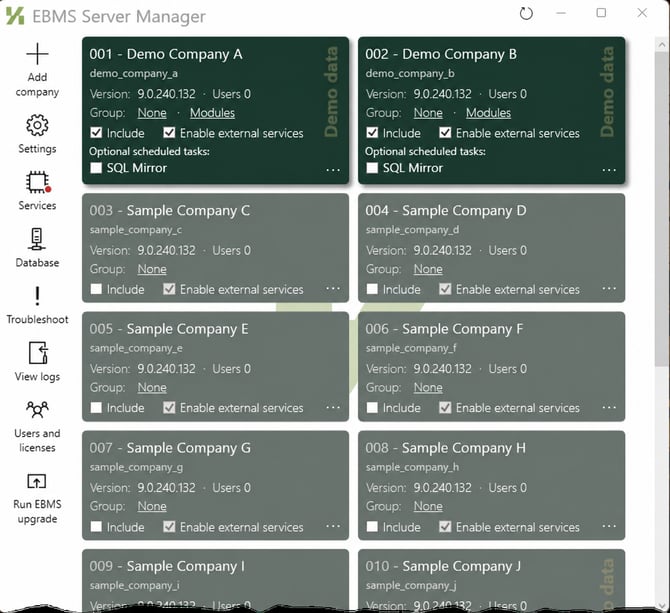
Review Enabling Access to Company Data for data set details and instructions to make a data set active (Green) or inactive (Muted Green).
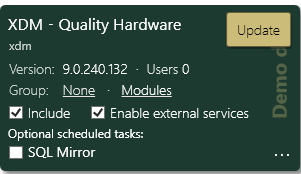
The following data utilities may appear on active data sets.
-
Update: Review Upgrading EBMS for more details on upgrading a data set.
-
Update Modules: Review Optional EBMS Modules for details on adding modules.
Any important setup function of this utility is to communicate proper information to Koble Systems.
Click on the Settings icon  on the left navigation bar to open the General settings dialog as shown below:
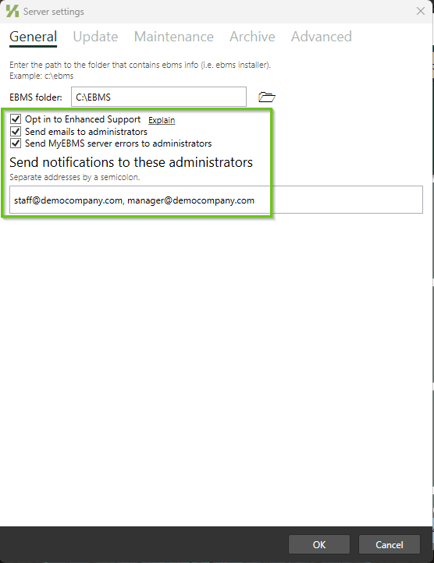
- Enable the Opt in to Enhanced Support option. It is important to enable this option, so the EBMS software communicates key information to the EBMS team to allow the support staff to view a log of system error and to give timely support. This option does not communicate sensitive accounting information and is used for the sole purpose of enhancing the software and improving customer support.
- Enable the Send emails to administrators to facilitate the communication of EBMS upgrades and patches.
- Enable the Send MyEBMS server errors to administrators to be notified if the Odata API service is no longer running.
- Enter the system administrator emails in the email address box. Separate multiple emails with a semicolon or comma.
- Click OK to save.
Review the EBMS Server Manager Installation & Setup section for EBMS Server Manager settings and setup information.
 The Green rectangles identify separate data sets. The EBMS Server Manager will automatically include data sets that are within the PostgreSQL database.
Click the Add Company option to perform any of the following actions. Review the Enabling Access to Company Data in EBMS Server Manager section for information related to enabling or disabling access to an EBMS Company.
- Restore backup
- Backups can be restored in this tab.
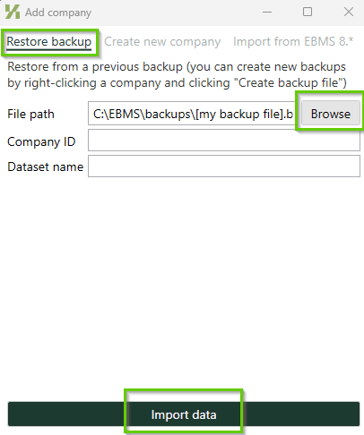
- Select the .backup file you wish to restore
- Company ID will be populated but can be changed prior to importing. (3 characters required)
- Dataset name will be populated but can be changed prior to importing. (All lowercase no spaces) Note: There is no mechanism to change the dataset name after uploading the backup. To change the dataset name you will need to remove the dataset (create a backup first if data has changed) from Server Manager and Restore the backup with a different dataset name.
- Create New Company
Use this tab to create a new blank dataset.
Company ID is required, 3 Characters
Dataset name is required, lower case no spaces
Note: Creating a new dataset can take some time and the process should not be interrupted.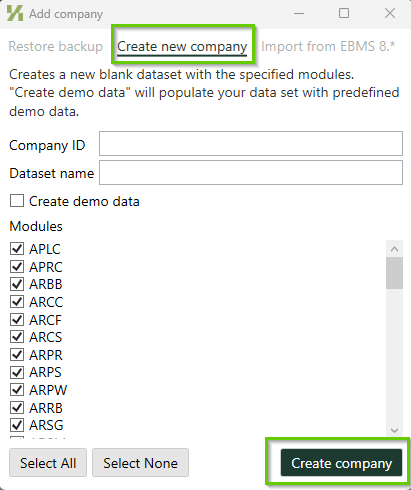
- Backups can be restored in this tab.
- Import from EBMS 8.6 (used by Koble Technicians only)
Multiple data sets (companies) can be grouped to restrict specific user data access. Review the Creating Company Groups in EBMS Server Manager for details.
Reference Creating a New Company for details on creating a blank company data set.
 ,
,  or
or  Review Upgrading EBMS for details on using the EBMS Server manager to upgrade EBMS to a new version or to install an EBMS patch.
Review the EBMS Server Manager Troubleshooting, Maintenance, and Utilities section for instructions to use the EBMS Server Manager to troubleshoot and maintain EBMS data.
The EBMS Server manager can also be used to schedule regular EBMS maintenance utilities. Review Schedule Maintenance Tasks for more details.